
1. Triển khai dự án & Sử dụng Alias imports
npx react-native@latest init PROJECT_NAME
//Thay thế PROJECT_NAME thành tên dự án của bạn babel.config.jsmodule.exports = {
presets: ['module:@react-native/babel-preset'],
// - Thêm -
plugins: [
...
[
'module-resolver',
{
root: ['.'],
alias: {
// This has to be mirrored in tsconfig.json
'^@/(.+)': './src/\\1',
},
},
],
],
// - Thêm -
};tsconfig.json{
"extends": "@react-native/typescript-config/tsconfig.json",
// - Add this -
"compilerOptions": {
"strict": true,
"baseUrl": ".",
"paths": {
//We will have to add the same thing in babel.config.js
"@/*": ["src/*"]
}
}
// - Add this -
}.hintrc{
"extends": ["development"],
"hints": {
"typescript-config/is-valid": "off"
}
}yarn add --dev babel-plugin-module-resolvernpx pod-install ios2. Cài đặt React Navigation
yarn add @react-navigation/native @react-navigation/bottom-tabs @react-navigation/native-stackyarn add react-native-screens react-native-safe-area-contextnpx pod-install ios3. Cài đặt i18next
yarn add i18next react-i18nextnpx pod-install ios4. Cài đặt React Native Config
yarn add react-native-configTạo cái file .env , .evn.production , .evn.development , .env.staging
Theo mẫu sau:
# ENV name
ENV=PRODUCTION

#Tag
TAG=PRODUCTION

# App name
APP_NAME=MIDU CRM

# API Url
API_URL=https://api.midu.vn/v1/api

# Android app ID. Define on google play
ANDROID_APP_ID=com.midu.crm

# Android app version name, define on google play
ANDROID_APP_VERSION_NAME=1.0.0

# Android version code, this is an unique code on google play
ANDROID_APP_VERSION_CODE=1

# Codepush deployment key for android
ANDROID_CODEPUSH_DEPLOYMENT_KEY=''

# Bundle ID of app on app store
IOS_APP_ID=com.midu.crm

# Version name on apple store
IOS_APP_VERSION_CODE=1.0.0

# Build code on app store, unique for each version
IOS_APP_BUILD_CODE=1

# Codepush deployment key for ios
IOS_CODEPUSH_DEPLOYMENT_KEY=''
Android
Truy cập file android/app/build.gradle , thêm những dòng sau:
...

project.ext.envConfigFiles = [
    development: ".env.development",
    staging: ".env.staging",
    production: ".env.production",
    anothercustombuild: ".env",
]

apply from: project(':react-native-config').projectDir.getPath() + "/dotenv.gradle"

...

android {
		...

    namespace "com.crm"
    defaultConfig {
        applicationId project.env.get("ANDROID_APP_ID")
        minSdkVersion rootProject.ext.minSdkVersion
        targetSdkVersion rootProject.ext.targetSdkVersion
        versionCode project.env.get("ANDROID_APP_VERSION_CODE").toInteger()
        versionName project.env.get("ANDROID_APP_VERSION_NAME")
        resValue "string", "build_config_package", "com.crm"
    }
    signingConfigs {
        debug {
            storeFile file(DEBUG_STORE_FILE)
            storePassword DEBUG_STORE_PASSWORD
            keyAlias DEBUG_KEY_ALIAS
            keyPassword DEBUG_KEY_PASSWORD
        }
        development {
            storeFile file(DEVELOPMENT_STORE_FILE)
            storePassword DEVELOPMENT_STORE_PASSWORD
            keyAlias DEVELOPMENT_KEY_ALIAS
            keyPassword DEVELOPMENT_KEY_PASSWORD
        }
        staging {
            storeFile file(STAGING_STORE_FILE)
            storePassword STAGING_STORE_PASSWORD
            keyAlias STAGING_KEY_ALIAS
            keyPassword STAGING_KEY_PASSWORD
        }
        production {
            storeFile file(PRODUCTION_STORE_FILE)
            storePassword PRODUCTION_STORE_PASSWORD
            keyAlias PRODUCTION_KEY_ALIAS
            keyPassword PRODUCTION_KEY_PASSWORD
        }
    }
    buildTypes {
        debug {
            signingConfig signingConfigs.debug
            matchingFallbacks = ['debug', 'release']
        }
        release {
            minifyEnabled enableProguardInReleaseBuilds
            proguardFiles getDefaultProguardFile("proguard-android.txt"), "proguard-rules.pro"
        }
    }
    flavorDimensions "enviroment"
    productFlavors {
        development {
            dimension "enviroment"
            resValue "string", "app_name", project.env.get("APP_NAME")
            signingConfig signingConfigs.development
            applicationId project.env.get("ANDROID_APP_ID")
            resValue "string", "CodePushDeploymentKey", project.env.get("ANDROID_CODEPUSH_DEPLOYMENT_KEY")
        }
        staging {
            dimension "enviroment"
            resValue "string", "app_name", project.env.get("APP_NAME")
            signingConfig signingConfigs.staging
            applicationId project.env.get("ANDROID_APP_ID")
            resValue "string", "CodePushDeploymentKey", project.env.get("ANDROID_CODEPUSH_DEPLOYMENT_KEY")
        }
        production {
            dimension "enviroment"
            resValue "string", "app_name", project.env.get("APP_NAME")
            signingConfig signingConfigs.production
            applicationId project.env.get("ANDROID_APP_ID")
            resValue "string", "CodePushDeploymentKey", project.env.get("ANDROID_CODEPUSH_DEPLOYMENT_KEY")
        }
    }
}

...
Truy cập file android/app/src/main/res/values/strings.xml
<resources>
    <!-- <string name="app_name">crm</string> -->
</resources>
Truy cập android/gradle.properties
# Information dev keystore
DEBUG_STORE_FILE=debug.keystore
DEBUG_KEY_ALIAS=androiddebugkey
DEBUG_STORE_PASSWORD=android
DEBUG_KEY_PASSWORD=android
# Information staging keystore
STAGING_STORE_FILE=midu-staging-keystore.jks
STAGING_KEY_ALIAS=midu-staging
STAGING_STORE_PASSWORD=Midu2023@
STAGING_KEY_PASSWORD=Midu2023@
# Information development keystore
DEVELOPMENT_STORE_FILE=midu-development-keystore.jks
DEVELOPMENT_KEY_ALIAS=midu-development
DEVELOPMENT_STORE_PASSWORD=Midu2023@
DEVELOPMENT_KEY_PASSWORD=Midu2023@
# Information production keystore
PRODUCTION_STORE_FILE=midu-production-keystore.jks
PRODUCTION_KEY_ALIAS=midu-production
PRODUCTION_STORE_PASSWORD=Midu2023@
PRODUCTION_KEY_PASSWORD=Midu2023@

# Gen key
# keytool -genkey -v -keystore midu-staging-keystore.jks -alias midu-staging -keyalg RSA -keysize 2048 -validity 10000
# keytool -genkey -v -keystore midu-development-keystore.jks -alias midu-development -keyalg RSA -keysize 2048 -validity 10000
# keytool -genkey -v -keystore midu-production-keystore.jks -alias midu-production -keyalg RSA -keysize 2048 -validity 10000
Sử dụng các câu lệnh tạo keystore thành các file: midu-staging-keystore.jks
midu-development-keystore.jks
midu-production-keystore.jks
IOS
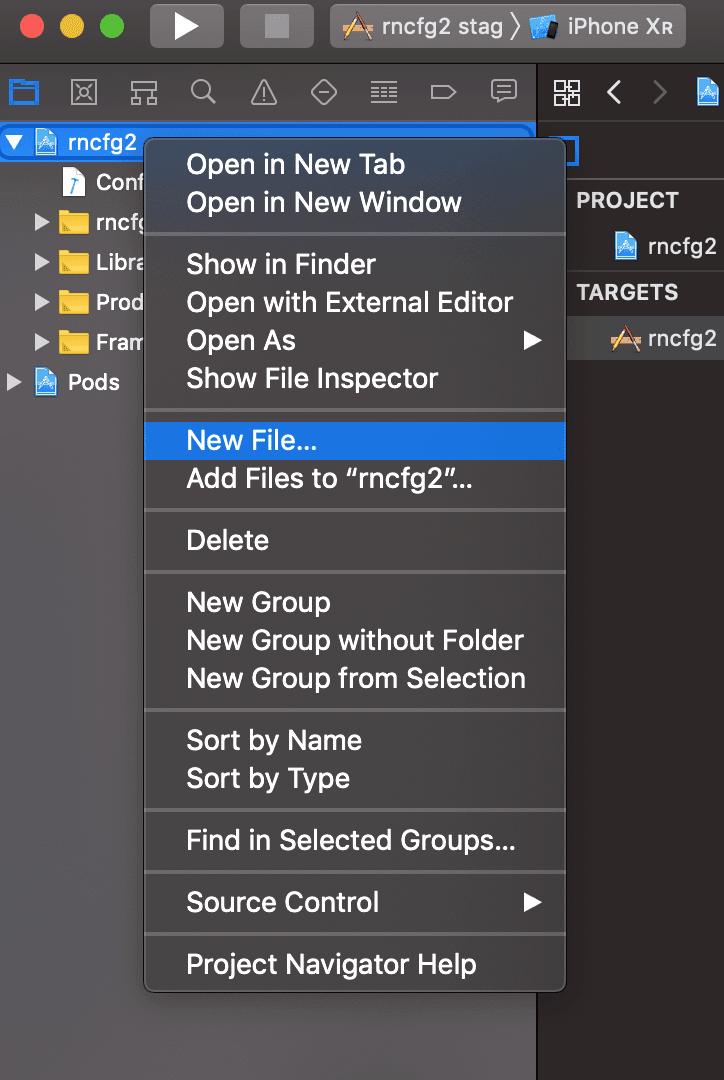
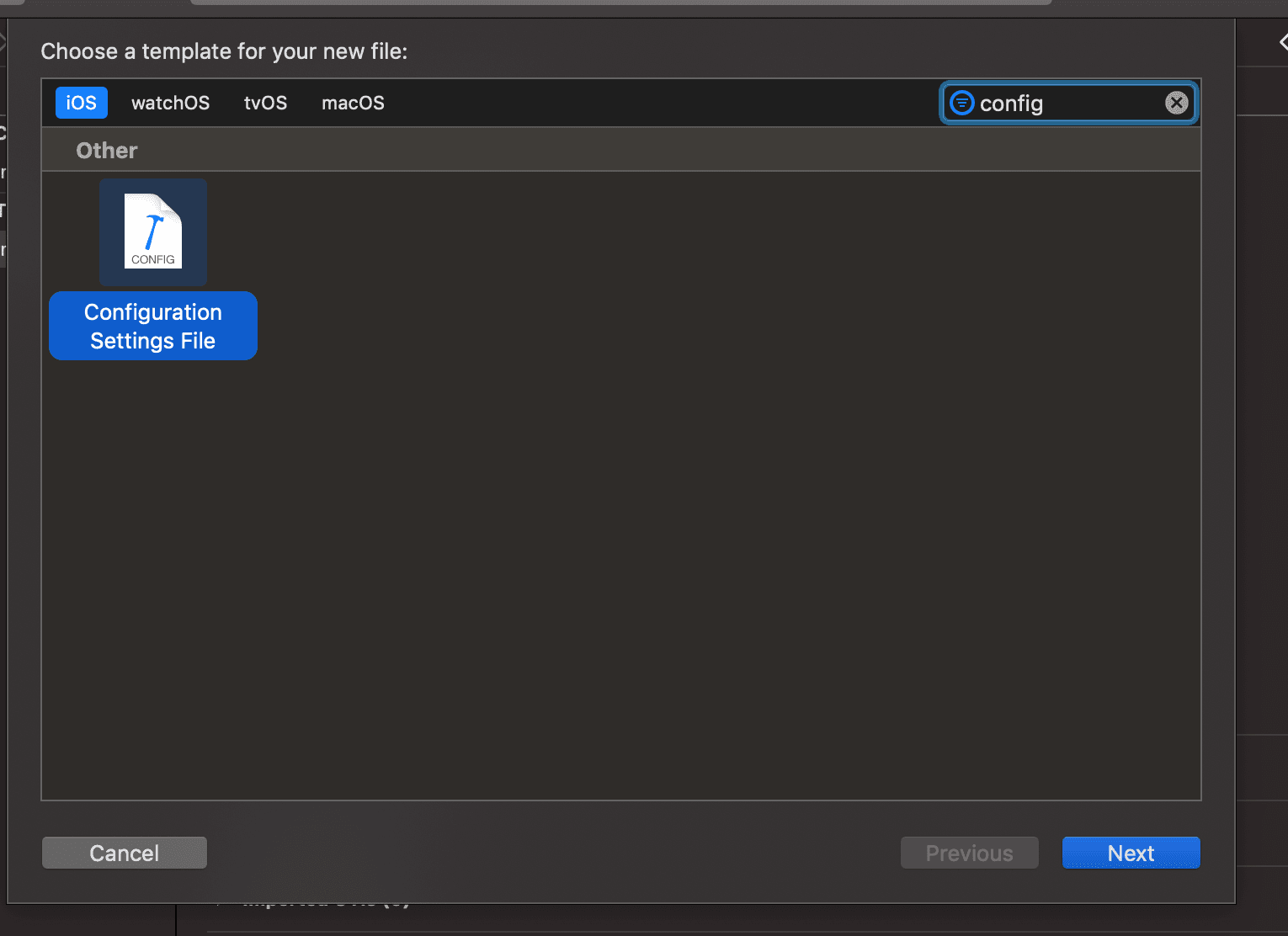
click on the file tree and create new file of type XCConfig save it under ios folder as "Config.xcconfig" with the following content:
#include? "tmp.xcconfig"
add the following to your ".gitignore":
# react-native-config codegen
ios/tmp.xcconfig
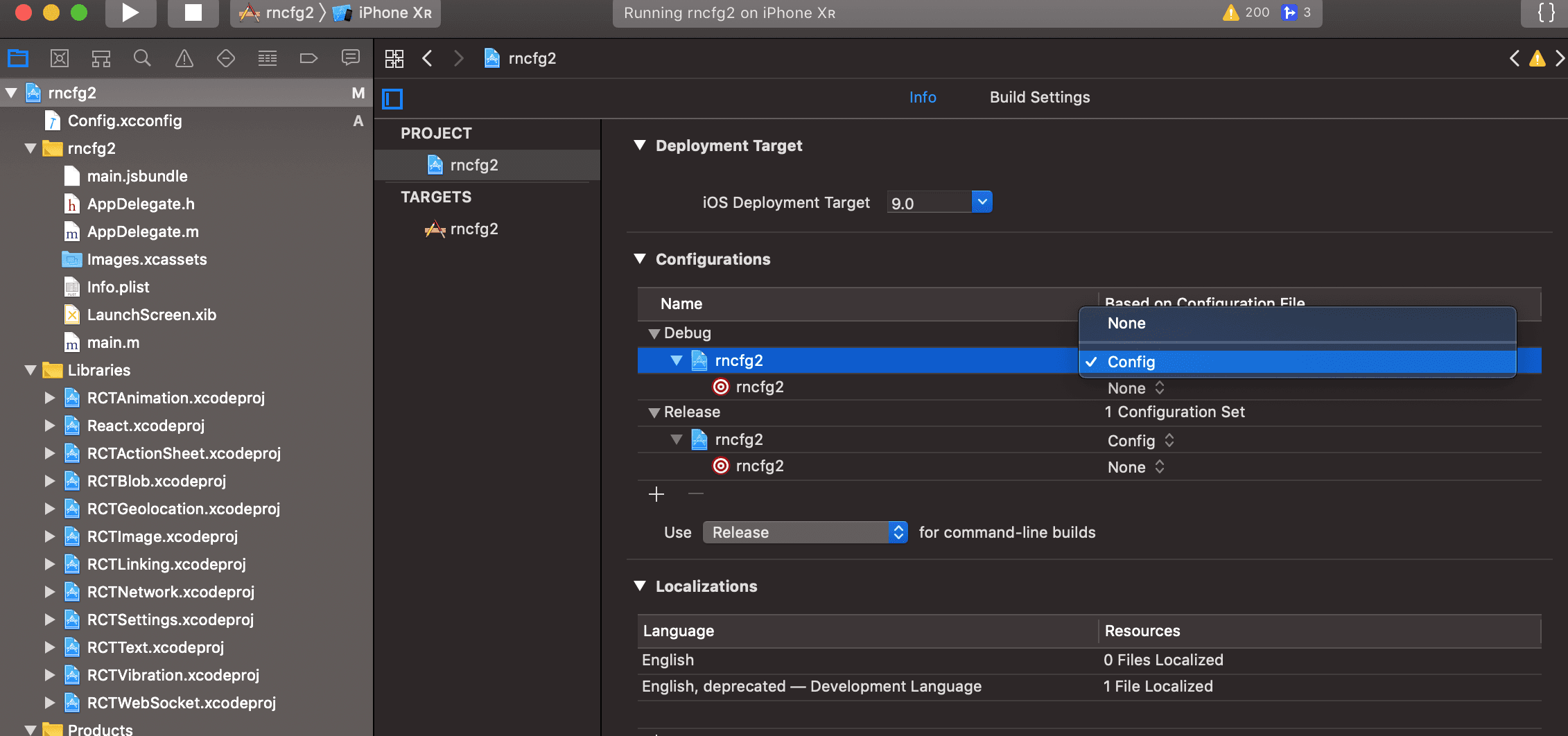
go to project settingsapply config to your configurations Go to Edit scheme... -> Build -> Pre-actions, click + and select New Run Script Action. Paste below code which will generate "tmp.xcconfig" before each build exposing values to Build Settings and Info.plist. Make sure to select your target under Provide build settings from, so $SRCROOT environment variables is available to the script. (Note that this snippet has to be placed after "cp ... ${PROJECT_DIR}/../.env" if approach explained below is used).
"${SRCROOT}/../node_modules/react-native-config/ios/ReactNativeConfig/BuildXCConfig.rb" "${SRCROOT}/.." "${SRCROOT}/tmp.xcconfig"
You can now access your env variables in the Info.plist, for example $(MY_ENV_VARIABLE). If you face issues accessing variables, please open a new issue and provide as much details as possible so above steps can be improved.
Tạo 2 script trong pre-actions:
Chọn dấu + , sau đó chọn New Run Script Action
echo ".env.production" > /tmp/envfile"${SRCROOT}/../node_modules/react-native-config/ios/ReactNativeConfig/BuildXCConfig.rb" "${SRCROOT}/.." "${SRCROOT}/tmp.xcconfig"Thêm Extensions trong ios/Podfile
...
target 'crm' do
  config = use_native_modules!

  // Add this line
  pod 'react-native-config/Extension', :path => '../node_modules/react-native-config'
  //

  use_react_native!(
    ...
  )
  ...
end
ĐIều chỉnh file Info.plist
CFBundleDisplayName - $(APP_NAME)
CFBundleIdentifier - $(IOS_APP_ID)
CFBundleShortVersionString - $(IOS_APP_VERSION_CODE)
CFBundleVersion - $(IOS_APP_BUILD_CODE)
// Add more
CodePushDeploymentKey - $(IOS_CODEPUSH_DEPLOYMENT_KEY)
Điều chỉnh trong Build Settings / Packaging
Điều chỉnh trong General / Identity
5. Cài đặt CodePush
yarn global add appcenter-cliappcenter loginyarn add react-native-code-pushA. Android
1. Thêm dòng code vào android/settings.gradle
include ':app', ':react-native-code-push'
project(':react-native-code-push').projectDir = new File(rootProject.projectDir, '../node_modules/react-native-code-push/android/app')
2. Thêm dòng code vào android/app/build.gradle
apply from: "../../node_modules/react-native-code-push/android/codepush.gradle"3. Cập nhật MainApplication.kt
…
// 1. Nhập plugin class.
import com.microsoft.codepush.react.CodePush;
//

class MainApplication : Application(), ReactApplication {

  override val reactNativeHost: ReactNativeHost =
      object : DefaultReactNativeHost(this) {
        override fun getPackages(): List<ReactPackage> =
            PackageList(this).packages.apply {
            }

        override fun getJSMainModuleName(): String = "index"

        override fun getUseDeveloperSupport(): Boolean = BuildConfig.DEBUG
// 2. Ghi đè phương thức getJSBundleFile
        override fun getJSBundleFile(): String {
          return CodePush.getJSBundleFile()
        }
//

        override val isNewArchEnabled: Boolean = BuildConfig.IS_NEW_ARCHITECTURE_ENABLED
        override val isHermesEnabled: Boolean = BuildConfig.IS_HERMES_ENABLED
      }

  override val reactHost: ReactHost
    get() = getDefaultReactHost(this.applicationContext, reactNativeHost)

  override fun onCreate() {
    super.onCreate()
    SoLoader.init(this, false)
    if (BuildConfig.IS_NEW_ARCHITECTURE_ENABLED) {
      load()
    }
    ReactNativeFlipper.initializeFlipper(this, reactNativeHost.reactInstanceManager)
  }

}
4. Truy cập AppCenter, chọn dự án của bạn, sau đó chọn Distribute > CodePush. Ấn biểu tượng setting và sao chép Production key.
5. Dán Production key vào trong android/app/build.gradle ở buildTypes.
// Trong buildTypes/debug
resValue "string", "CodePushDeploymentKey", '""'
// Trong buildTypes/release
resValue "string", "CodePushDeploymentKey", 'DEVELOPMENT_KEY'
// Thay thế DEVELOPMENT_KEY thành CodePush key của bạnB. IOS
pod install để cập nhật CocoaPods dependencies.AppDelegate.mm để cho phép truy cập CodePush.#import <CodePush/CodePush.h>3. Tìm đến dòng code sau có trong AppDelegate.mm
return [[NSBundle mainBundle] URLForResource:@"main" withExtension:@"jsbundle"];Thay thế nó bằng
return [CodePush bundleURL];4. Truy cập AppCenter, chọn dự án của bạn, sau đó chọn Distribute > CodePush. Ấn biểu tượng setting và sao chép Production key.
5. Thêm Production key vào Info.plist .
<key>CodePushDeploymentKey</key>
<string>DEVELOPMENT_KEY</string>
// Thay thế DEVELOPMENT_KEY thành CodePush key của bạn
C. Bọc App.tsx của bạn với CodePush
import * as React from 'react';
import {NavigationContainer} from '@react-navigation/native';
import {createNativeStackNavigator} from '@react-navigation/native-stack';
// 1. Nhập thư viện
import CodePush from 'react-native-code-push';
//


import SignInScreen from '@/screens/Authentication/SignIn';
import MainScreen from '@/screens/Main';
import HomeScreen from '@/screens/Main/Home';
import SettingScreen from '@/screens/Main/Setting';

export type RootStackParams = {
  SignInScreen: undefined;
  MainScreen: undefined;
  HomeScreen: undefined;
  SettingScreen: undefined;
};

const routes: Array<React.ComponentProps<typeof RootStack.Screen>> = [
  {
    name: 'SignInScreen',
    component: SignInScreen,
  },
  {
    name: 'MainScreen',
    component: MainScreen,
  },
  {
    name: 'HomeScreen',
    component: HomeScreen,
  },
  {
    name: 'SettingScreen',
    component: SettingScreen,
  },
];

const RootStack = createNativeStackNavigator<RootStackParams>();

function App() {
  return (
    <NavigationContainer>
      <RootStack.Navigator
        initialRouteName={'SignInScreen'}
        screenOptions={{
          headerShown: false,
        }}>
        {routes.map(routeConfig => (
          <RootStack.Screen key={routeConfig.name} {...routeConfig} />
        ))}
      </RootStack.Navigator>
    </NavigationContainer>
  );
}
// 2. Thay thế
// export default App;
// thành
// export default CodePush(App);
export default CodePush(App);
//
D. Triển khai CodePush
SignIn.tsximport React, {useState} from 'react';
import {SafeAreaView, Text, TouchableOpacity, View} from 'react-native';
import {useNavigation, ParamListBase} from '@react-navigation/native';
import {NativeStackNavigationProp} from '@react-navigation/native-stack';
import {useTranslation} from 'react-i18next';
import languages from '@/translations/languages';
import i18n from '@/translations/i18n';
import Config from 'react-native-config';
import styles from './styles';
const SignInScreen: React.FC = () => {
const navigation = useNavigation<NativeStackNavigationProp<ParamListBase>>();
const {t} = useTranslation();
const [language, setLanguage] = useState('VI');
const handleChangeLanguage = (newLanguage: string, value: string) => {
setLanguage(newLanguage);
i18n.changeLanguage(value);
};
const handleNavigateHome = () => {
navigation.navigate('MainScreen');
};
console.log('ENV', Config.ENV);
return (
<SafeAreaView style={styles.container}>
<View style={styles.languagesBox}>
<TouchableOpacity
onPress={() =>
handleChangeLanguage(
languages.vi.value.toUpperCase(),
languages.vi.value,
)
}>
<Text style={styles.button}>{t('button:vietnamese')}</Text>
</TouchableOpacity>
<TouchableOpacity
onPress={() =>
handleChangeLanguage(
languages.en.value.toUpperCase(),
languages.en.value,
)
}>
<Text style={styles.button}>{t('button:english')}</Text>
</TouchableOpacity>
</View>
<Text style={styles.centerText}>
{t('common:currentLanguage')}: {language}
</Text>
<View style={styles.center}>
<Text style={styles.subtitle}>{t('common:screen')}</Text>
<Text style={styles.subtitle}>{Config.ENV}</Text>
<Text style={styles.subtitle}>{Config.IOS_APP_ID}</Text>
<Text style={styles.title}>{t('title:signIn')}</Text>
<Text style={styles.button} onPress={handleNavigateHome}>
{t('button:home')}
</Text>
</View>
</SafeAreaView>
);
};
export default SignInScreen;package.json{
"name": "",
"version": "0.0.1",
"private": true,
"scripts": {
...
// Thêm mới các script sau
"codepush:android-production": "appcenter codepush release-react -a ledhcg/DEMO-ANDROID -d Production",
"codepush:android-staging": "appcenter codepush release-react -a ledhcg/DEMO-ANDROID -d Staging",
"codepush:ios-production": "appcenter codepush release-react -a ledhcg/DEMO-IOS -d Production",
"codepush:ios-staging": "appcenter codepush release-react -a ledhcg/DEMO-IOS -d Staging"
//
...
}
}// Production
yarn codepush:android-production
// Staging
yarn codepush:android-staging// Production
yarn codepush:ios-production
// Staging
yarn codepush:ios-stagingShare this article